

A message stating that the disk is full may suddenly appear on the screen and cause concern. This warning indicates insufficient space and potential system issues, such as file saving failures, freezes, or even the inability to load important information. This article gives practical pieces of advice on how the “Disk is Full” error can be eliminated and the normal system restored. It would be sensible to identify the main causes of the problem before exploring more specific ways to solve it.
What does “Error – Disk Full” mean?
A message about a full system disk means that there is no more free memory on it for installing programs, updates, or even for temporary system operations. This is an alarming sign that resources are exhausted and the system may become unstable. If you do not free up space in time, your computer will slow down or stop working altogether.
Reasons for the error
Below are the key reasons that can lead to a lack of free space and the appearance of an error message.
- Lack of total space on the hard drive.
- Cache overflow.
- Accumulation of junk files.
- Overloaded Temp and %temp% folders.
- Hardware failures.
- Incompatibility between hardware and software.
These factors often work together: temporary files grow, junk accumulates, and incorrect drivers or hardware can interfere with cleaning. It is important to understand what exactly happened in order to eliminate the cause, not just its result.
How to fix the “Disk is Full” error?
Here are three reliable ways that really help eliminate the message about a full disk. Each of them is easy to perform and does not require any special skills.
1. Clear temporary files
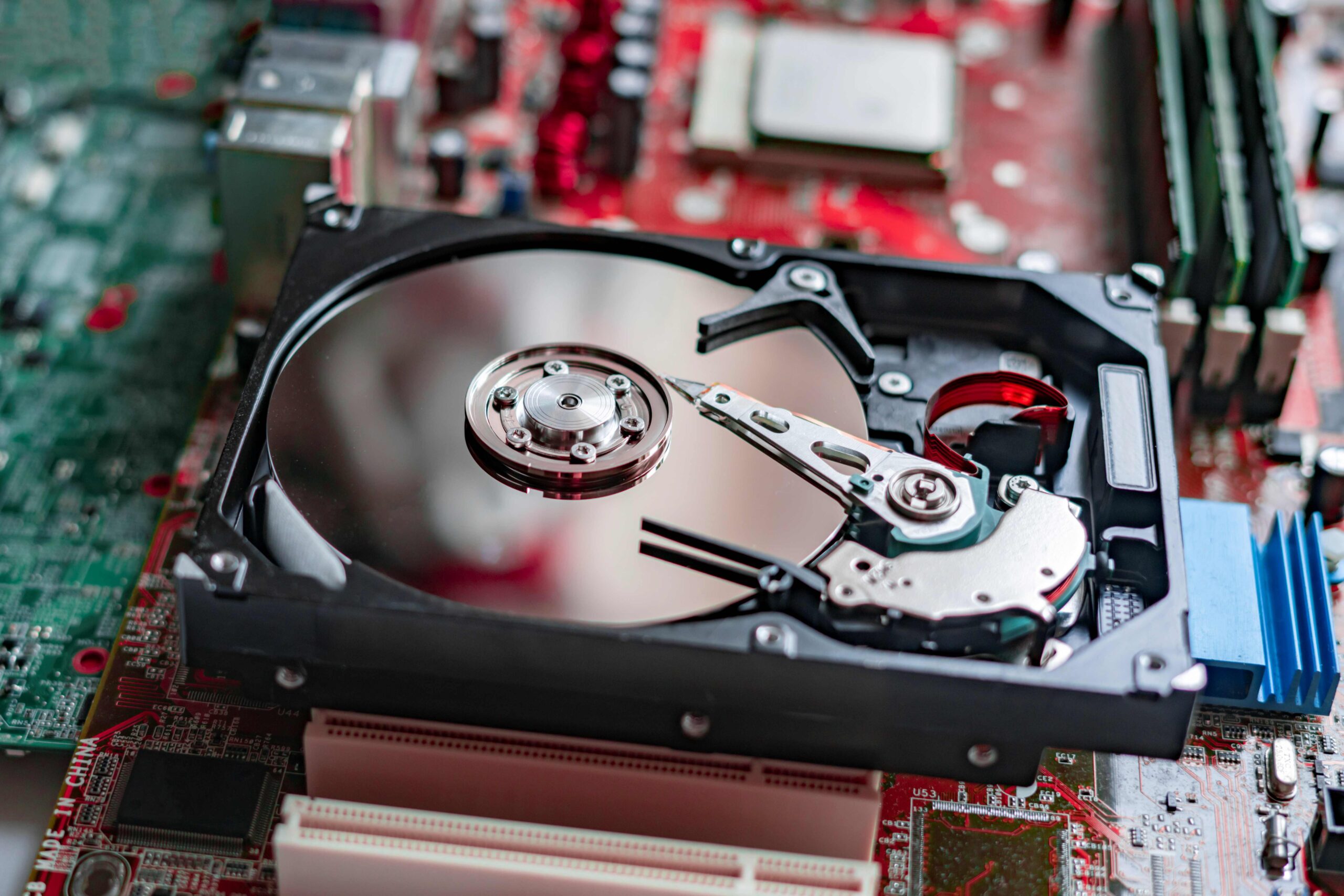 The first step is to get rid of temporary files that are created when programs are running and updates are installed. Deleting them frees up space and gives the system a “refresh.”
Instructions:
- Press Win + R, type %temp%, and press Enter.
- Delete all the files you see in the folder that opens.
- Then press Win + R again, type Temp, and press Enter.
- Delete the files from this folder as well.
These actions have an instant effect: the system is freed from unnecessary “junk” and space is freed up.
2. Emptying the Recycle Bin
The Recycle Bin often stores deleted files that do not actually free up space. In this case, follow these recommendations:
- Find the Recycle Bin icon on your desktop.
- Right-click on it and select “Empty Recycle Bin.”
- Confirm the deletion.
This method is safe and especially useful if the Recycle Bin has not been emptied for a long time and previously deleted files are still taking up space.
3. Installing a larger disk
If the first two methods did not help, perhaps the disk is indeed too small in terms of capacity. What can be done:
- Replace the current disk with a more spacious one.
- Use a used disk with a larger capacity if purchasing a new one is not possible.
This may seem like a drastic measure, but in some cases it is necessary. This is especially true if the system drive was too small to begin with and the current problems occur regularly.
Additional causes of the error
The “Disk full” message is not always related to temporary files or the recycle bin being full. In some cases, other factors that are not obvious at first glance are the source of the problem. It is important to take them into account so that you don’t encounter the error again and again.
- Automatic Windows updates. New versions of the system or cumulative packages take up a significant amount of memory. If space is not prepared in advance, the installation of updates will be interrupted and the disk will remain overloaded.
- Downloading large files without control. High-quality movies, massive archives, or game distributions can take up tens of gigabytes. Users sometimes forget about them, and free space melts away.
- Restore points. The system automatically creates copies to roll back changes. Over time, their number grows, and they begin to “eat up” a significant portion of the volume.
- Unoptimized programs. Some applications create their own temporary file and log folders, which become too large over time.
Thus, a message about a full disk is a signal not only to clean up, but also to analyze. If you identify the source of the fill, you can avoid repeating the problem in the future.
Prevention and maintenance of disk health
It is not only worth addressing the “Disk is Full” error when it has already occurred. It is much more effective to implement simple habits in advance that will allow the system to remain stable. Prevention helps save time and effort, as well as extend the life of the equipment.
Regularly cleaning temporary folders, such as Temp and %temp%, at least once a month, helps prevent the accumulation of unnecessary files. It is equally important to monitor the recycle bin and, if necessary, set it to empty automatically so that deleted data actually frees up space. Timely software updates also play an important role: new versions are often optimized and run with less memory. Disk monitoring is an additional tool — built-in Windows tools help you determine which directories are taking up the most space. And to unload the system partition, it is useful to transfer photos, music, and videos to separate drives or store them in the cloud.
If you apply these measures regularly, your computer will run more smoothly and predictably, and you will see the “Disk full” message less and less often. Taking care of your disk ultimately means taking care of your entire system, because its condition determines the speed, reliability, and comfort of your user experience.
Final facts
By performing simple actions, such as cleaning up data to remove unnecessary files, monitoring memory usage, and performing timely maintenance on storage devices, you can free up disk space and ensure smooth system operation. The most important thing is to develop a habit of prevention. The risk of errors is very low when users constantly check the status of their disks, find out how much free space is available, and promptly move overly large files to other media. Attention to detail is the key to ensuring that computers run smoothly for a long time.